

Page Tree Sorter documentation
Page Tree Sorter keeps your Confluence Cloud page tree in order by itself. For each page or folder you choose whether its children are sorted A–Z, Z–A or kept manual. The setting is inherited down the tree, and new, renamed and moved pages fall into place.
Install
Page Tree Sorter is coming soon to the Atlassian Marketplace. Once it is listed:
- In Confluence, open Apps, then Explore more apps (or go to the Atlassian Marketplace) and search for Page Tree Sorter.
- Select the install button and confirm the permissions. Installing requires a site admin.
- The app is ready right away. Nothing is sorted until a space admin sets a mode.
After the installation, and after major updates, the app rebuilds its overview of set modes automatically in the background. On large sites this can take a while. The Rebuild index button on the Sorting space page is only a fallback.
Where to find it
| Entry point | What it does |
|---|---|
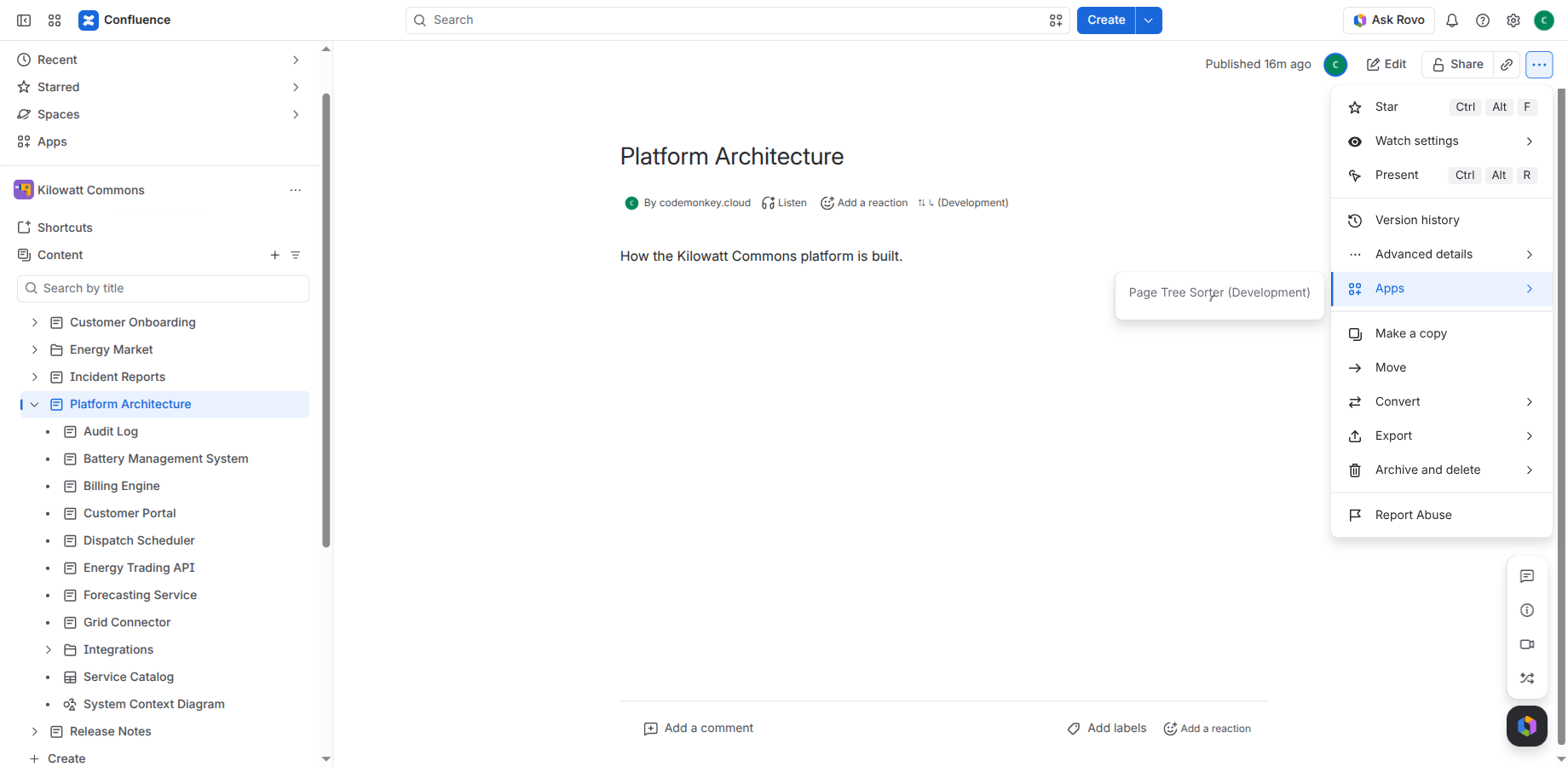
| Page menu ••• → Apps → Page Tree Sorter | Opens the dialog. It shows the effective mode and where it comes from (for example “A–Z, inherited from Handbook”), lets space admins set the mode and offers Sort once…. |
| Byline under the page title | Shows the mode at a glance: ⇅ A–Z, ⇅ Z–A,
⇅ ⋮⋮ (manual) or ⇅ ↳ (inherited; the dialog shows which mode).
⇅ ↳ means the page has no own setting and takes the mode from above; if no mode is set anywhere above, the effective mode is Manual and nothing is sorted.
The tooltip is always in English. Select the byline to open the dialog. |
| Space navigation → Space apps → Sorting | Browse the tree level by level, set modes for pages and folders, and see all modes set in the space. See The Sorting space page. |
The interface follows the Confluence language: German or English. Other languages fall back to English.
First use: each user has to select Allow access once when they first open the app. Until then the byline shows only ⇅.
Sort modes and inheritance
A mode on a page or folder decides how its children are sorted.
| Mode | Effect on the children |
|---|---|
| Inherited (default) | Uses the mode of the nearest page or folder above that has one |
| A–Z | Sorted alphabetically |
| Z–A | Sorted in reverse alphabetical order |
| Manual | The order stays as you arrange it by drag and drop |
- The deepest setting wins. A manual chapter list can live inside an alphabetical knowledge base, and an A–Z branch can live inside a manual one.
- If no page or folder above has a mode, the effective mode is Manual: the app does nothing and the space behaves as before.
- To sort a whole space, set the mode on the space home page.
Example:
Handbook                  ← A–Z
├── Appendix                inherits A–Z
├── Glossary                inherits A–Z, its children are sorted too
└── Installation          ← Manual (logical order)
    ├── 1. Requirements     kept as arranged
    ├── 2. Download         kept as arranged
    └── Reference         ← Z–A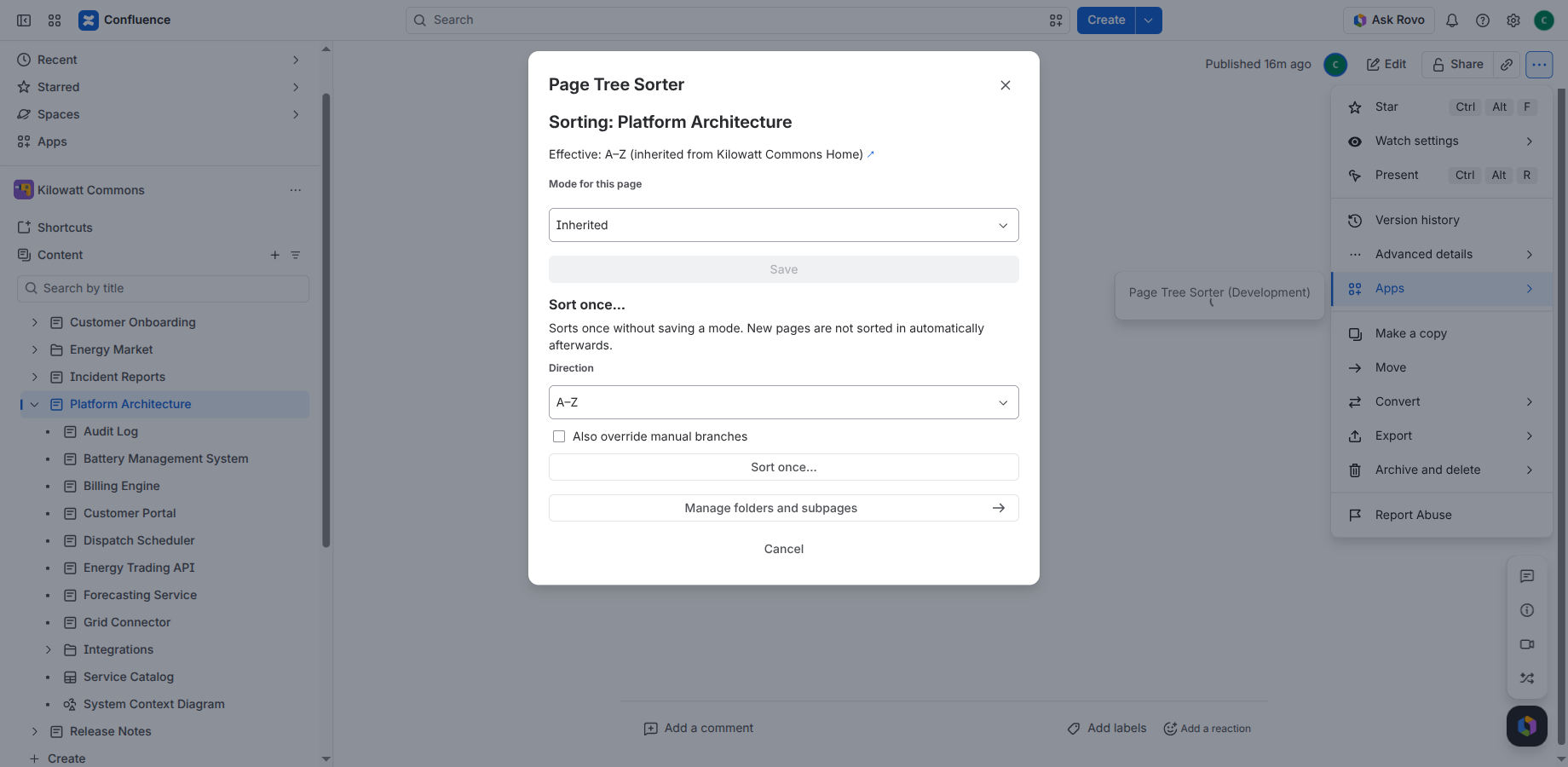
Folders
Folders can have their own mode, just like pages, and they pass it on to everything below them. Confluence offers no app menu on folders, so you set a folder’s mode on the Sorting space page: open the folder’s level and choose a mode under Mode here. In the page dialog, Manage folders and subpages opens the space page at the current page.
Content types and sort order
- All content types on a level are sorted together by title: pages, folders, whiteboards, databases, smart links and slides.
- Pages and folders carry a mode and pass it on. The other types are sorted as items but are not levels of their own: the children of whiteboards, databases and smart links are never sorted.
- The top level of a space (pages without a parent) is not sorted.
- Natural order: numbers sort by value, so “Chapter 2” comes before “Chapter 10” and “Release 2.9” before “Release 2.10”.
- Sorting ignores upper and lower case. Accented letters and umlauts sort with their base letter.
- Equal titles keep a stable order. Items without a title go last.
- Drafts are private to their author. They are sorted in when they are published. Your own drafts appear on the Sorting space page as “Draft” without a mode.
- Archived and deleted content is never moved.
Automatic sorting
Under an A–Z or Z–A parent, the app sorts the children again, usually within seconds, after
- a page is created, renamed, moved or copied in,
- a folder, whiteboard, database or smart link is created, moved or copied in,
- someone reorders the children by hand,
- a page is edited or restored from the trash. This triggers a check only; if the order is right, nothing is moved.
Confluence may deliver these events with a delay of up to about three minutes.
- Only items that are out of place are moved.
- When you change a mode, every inheriting level below is sorted again.
- Pages the app may not move (restricted pages) are skipped. The dialog shows how many were skipped. Pages whose read restrictions exclude the app are invisible to it: they stay where they are and are not counted.
- The page tree in the sidebar does not refresh by itself. After you save a mode, reset it or start a sort, the dialog offers Reload page tree; otherwise reload the page.
Sort once (standard and hardcore)
Sort once… in the dialog sorts the whole subtree of a page one time, in the direction you choose (A–Z or Z–A). It does not save a mode, so new pages are not sorted in afterwards. Before it starts, the confirmation shows how many pages and folders are below this page, as far as you can see them, including branches set to Manual (for very large trees a lower bound such as “More than 1,200”). The run descends into pages and folders.
Sort once starts only from a page’s dialog, not from a folder. A standard run by an editor moves the whole subtree with the app’s permissions; only edit permission on the start page is checked.
The option Also override manual branches turns a standard run into a hardcore run:
| Level | Standard | Hardcore (space admins) |
|---|---|---|
| The page you started on | chosen direction | chosen direction |
| Effective mode A–Z or Z–A | sorted by its own mode | sorted by its own mode |
| Inherited manual | chosen direction | chosen direction |
| Branch explicitly set to Manual | skipped with its whole subtree | sorted in the chosen direction |
Saved modes never change.
The Sorting space page
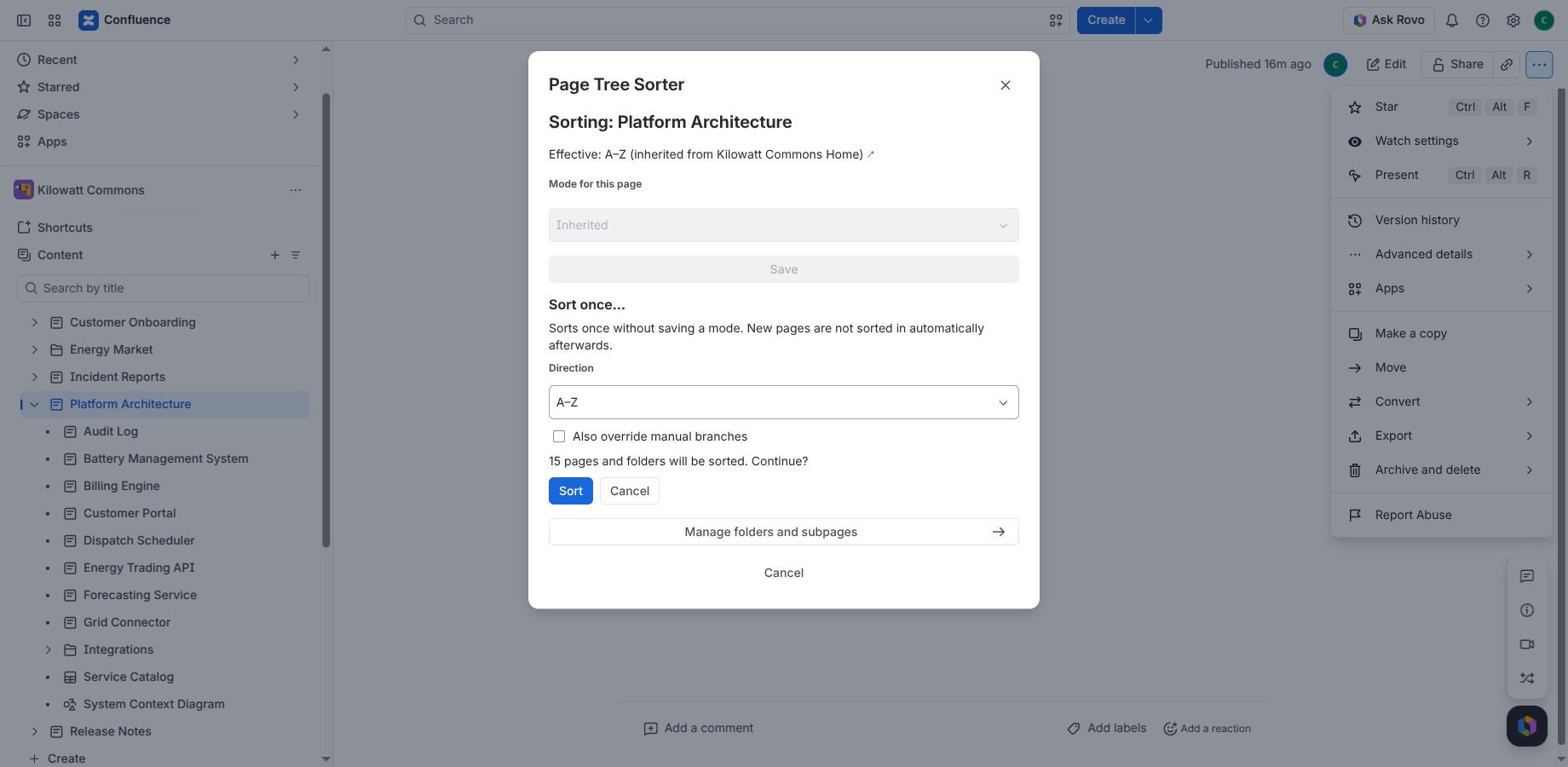
Open it from the space navigation under Space apps → Sorting. It shows
- a breadcrumb and the current level with Mode here and the effective mode,
- the items on this level with title, type, own mode and effective mode. Select a page or folder to open its level.
Space admins can set the mode of pages and folders here. They also see the table Sort modes set in this space, with who set each mode and when, and the actions Open level and Reset to inherited. Open level opens that level at the top of the page. Every level has its own URL, so the browser’s back button works. A folder row can be removed with Reset to inherited even after the folder was deleted.
Rebuild index (space admins) rebuilds this overview from the pages, for example after a reinstall. Folder modes cannot be restored this way. The app also rebuilds the index automatically after installation and upgrade, so the button is only a fallback. It works without an active license, and the Sorting page stays readable.
Permissions
| Action | Who |
|---|---|
| Set or reset a mode | Space admins |
| Sort once (standard) | Anyone who can edit the page |
| Sort once with hardcore | Space admins |
| View the Sorting space page | Anyone who can view the space |
| Overview of set modes, Rebuild index | Space admins |
All permissions are checked on the server, not only in the interface. The moves themselves are performed by the app.
License
Page Tree Sorter is a paid app, to be licensed through the Atlassian Marketplace once listed, and free for sites with up to 10 users.
Without an active license, automatic sorting pauses, modes cannot be set or reset, and sort once is disabled. The dialog and the space page show “License not active – automatic sorting is paused. Saved settings are kept.” Saved modes are never deleted. Once the license is active again, they apply again, and each level is sorted at its next change.
The app is provided under the terms of use.
Privacy and data
Page Tree Sorter is built on Atlassian Forge, uses no external hosts and sends no data outside Atlassian. It neither reads nor stores page content. It keeps only what it needs to sort: page and folder IDs, titles for the overview, modes and the account ID of the space admin who set a mode.
- A page’s mode is stored on the page itself as a content property.
- A folder’s mode and the overview are stored in the app’s Forge storage.
Details are in the privacy policy.
Known limitations
- No app menu in the sidebar page tree. Confluence does not let apps extend it. Use the page menu, the byline or the Sorting space page.
- The page tree does not refresh live. Reload it after sorting.
- Renamed folders: Confluence sends no event when a folder is renamed. Its position is corrected at the next change on that level.
- Folder modes are lost on uninstall. Page modes are stored on the pages and come back after a reinstall. Folder modes must be set again.
- Drafts are only visible to their author and are sorted in when they are published.
- Pages the app cannot read (read restrictions that exclude the app) are invisible to it. They stay where they are and are not counted as skipped.
- Blog posts are not sorted.
FAQ
A new page was not sorted in.
Check the effective mode of its parent, in the dialog or, for folders, on the Sorting space page. Events can take up to about three minutes. If the page is still a draft, it is sorted in when it is published.
Can I keep one branch in a logical order?
Yes. Set that page or folder to Manual. Everything below it inherits manual unless set otherwise.
I dragged a page and it jumped back.
Its parent is sorted A–Z or Z–A, so the app restores the order. Set the parent to Manual if you want to arrange it by hand.
Some pages were not moved.
The app lacked permission to move them (HTTP 403). The dialog of their parent page shows how many were skipped in its last run. That number counts only pages the app could see but was not allowed to move; pages with read restrictions that exclude the app are invisible to it and stay where they are.
The byline only shows ⇅.
Select Allow access the first time you open the app. Each user has to do this once.
Does the app read my page content?
No. It reads titles, IDs and the tree structure only.
What happens on uninstall?
Atlassian deletes the app’s storage, including folder modes and the overview. Page modes stay on the pages as content properties and apply again after a reinstall. Reset them to inherited first if you want to remove them.
Support
Use the contact form, in English or German. You get a first answer within 2 business days (Monday to Friday, CET/CEST); if sorting has stopped working completely, within 1 business day. Please include your site URL, the page and what you expected.
← Back to the overview